

Already familiar with the Garmin checklist format mess? Skip ahead to The Workflow and get straight to the fix.
The Setup
If you fly behind Garmin avionics, you’re living in what the marketing materials would call a seamlessly integrated ecosystem. One app talks to another, your flight plan flows from Garmin Pilot to the G3X to the GTN, and everything just works. It’s a genuinely impressive setup — until you try to do something as mundane as keep your checklists consistent across devices.
Here’s the scenario: you use Garmin Pilot on your iPad for preflight planning and ground operations — it’s your EFB, your weather briefing tool, and yes, your checklist tool before engine start. Then you climb in, and your G3X Touch takes over as your primary flight display — and that’s where you want your checklists available for run-up, climb, cruise, and especially emergencies. Same aircraft. Same procedures. Two different contexts, both equally important.
The logical expectation — the reasonable, completely sensible expectation — is that you maintain one master checklist and it lives on both devices, always in sync, always reflecting your latest revision. Because manually maintaining two separate versions of your procedures is not just tedious. In aviation, procedural divergence is a hazard.
That’s where the ecosystem fairy tale ends.
You’d think that a single company, selling avionics products explicitly designed to work together, would have figured out a unified checklist format. A reasonable assumption. A wrong one. What you actually get is a fragmented mess of incompatible formats, no conversion path, and — just to make sure no one else solves the problem — an encrypted export format that kills any hope of third-party tooling.
But there’s a fix. And it didn’t come from Garmin.
The Formats Rabbit Hole
Let’s start with the basics. The G3X Touch — Garmin’s flagship EFIS for experimental aircraft — uses a proprietary checklist format called .ace. And it’s not just the G3X: the G300, GTN navigators, and older GPSMAP portables like the 695/696 and aera 796/795 all use .ace as well. So it’s widespread across the Garmin panel-mount world. Want to create or edit one? You’ll need the Garmin Aviation Checklist Editor (ACE), a Windows-only desktop application that looks and feels like it was built during the Clinton administration. We’re talking early-2000s UI energy, the kind of app that makes you wonder if anyone at Garmin has opened it since 2004.
Oh, and if you thought .ace was Garmin’s unified format — not quite. The newer G1000 NXi and G2/3/5000 series have quietly moved to yet another format called .gcl. Because one proprietary checklist format apparently wasn’t enough.
Now, if you’re a Mac household — or in my case, a Mac and Chromebook family with exactly zero Windows machines — you get to embark on a bonus adventure: downloading VMware Fusion, hunting down the ARM version of Windows 11, burning gigabytes of disk space, and setting up a virtual machine just to run one application. For checklists. Checklists.
Meanwhile, over in Garmin Pilot land, your checklists live in a format called .glpt. Different format, same company. No bridge between the two. But surely you can just export from Garmin Pilot and convert, right?
Here’s where it gets insulting. Garmin Pilot does export your checklists — in a format called .glpts. Note the extra “s.” That “s” stands for encrypted. Garmin took their own checklist format and locked it so that nothing else can read it. No conversion tools. No import path. No explanation. Just a dead end.
The Dead Ends
At this point, a reasonable person might think: surely someone has solved this. The Garmin ecosystem is massive. There are thousands of pilots using these products. Someone must have built a conversion tool, a bridge app, something.
So down the rabbit hole you go.
The first thing you’ll find is a third-party iOS app, Ace Checklist Editor, positioning itself as a checklist editor for Garmin avionics. It has a slick enough App Store page, promises multi-format support, and looks like it might just save the day. Then you look closer. Supporting multiple checklist formats requires an in-app purchase — $100. And despite all the format support on offer, it doesn’t actually support .glpt or .glpts — the very formats your checklists already live in inside Garmin Pilot. So you’d be starting from scratch anyway, on an iPhone keyboard, maintaining your master checklist files in yet another proprietary app ecosystem. Hard pass.
Beyond that, the broader internet landscape on this topic is a graveyard of forum posts, unanswered support threads, and GitHub repos that haven’t been touched since the Obama administration. The message is consistent: Garmin doesn’t provide a conversion path, nobody official has built one, and most pilots have either given up or resigned themselves to manually re-entering everything.
The Indictment
Let’s just call this what it is. Garmin, a company with the resources to put avionics in everything from experimental kitplanes to commercial flight decks, has managed to fumble something as fundamentally simple as checklist interoperability. Here’s the charge sheet:
1. Different formats for no good reason.
The G3X uses .ace. Garmin Pilot uses .glpt. Newer panel-mount systems use .gcl. These are checklists — not flight management algorithms, not terrain databases, not encrypted nav data. There is no technical justification for multiple incompatible formats across a single vendor’s ecosystem. This is not complexity. This is neglect.
2. No interoperability. No conversion. Nothing.
Garmin offers zero official path to move checklists between their own products. No export-to-G3X button in Garmin Pilot. No import-from-EFB option on the G3X. Not even a support article acknowledging the problem exists. The ecosystem that seamlessly syncs your flight plan apparently draws the line at checklists.
3. They actively blocked third-party solutions.
The .glpts export format — that extra “s” — is encrypted. This wasn’t an accident or an oversight. Someone at Garmin made a deliberate decision to lock the export format in a way that prevents any third-party tool from reading it. If you were hoping the developer community would fill the gap Garmin left, Garmin made sure to close that door too.
4. They didn’t even solve it for themselves.
Here’s the part that’s almost impressive in its dysfunction: if this were about protecting some strategic business interest, you’d expect Garmin to at least offer their own solution — a sync feature, a conversion tool, anything. They didn’t. There is no first-party answer to this problem. The lock-in strategy, if that’s what it was, didn’t even come with a key.
Enter the Hero
Enter a software engineer who apparently looked at this mess, decided it was unacceptable, and built the solution Garmin never bothered to create. The tool is called EFIS Editor — free, open-source, browser-based, and it supports more avionics formats than Garmin’s own tooling. It asks nothing of you in return. No Windows VM. No $100 in-app purchase. No vendor lock-in.

You can find it at rdamazio.github.io/efis-editor — and yes, it runs entirely in your browser. Mac, Chromebook, Windows, iPad — it doesn’t care. It just works. The full source code is available on GitHub for anyone who wants to dig in or contribute.
Here’s what makes it genuinely impressive. EFIS Editor supports the following import and export formats:
- Garmin G3X / GTN (.ace)
- Garmin Pilot (.gplt)
- Advanced Flight Systems (.afd)
- Dynon SkyView (.txt — multiple column width variants)
- Jeppesen ForeFlight (.fmd)
- Grand Rapids Technologies (.txt)
- Raw data (.json)
- Printable PDF (export only)
That’s right — one tool, one interface, every major format. The checklist you build in EFIS Editor can be exported to your G3X and your Garmin Pilot in one workflow. No re-entry. No divergence. No compromises.
Your data lives in your browser’s local storage by default, which means nothing is sent to any server. If you want redundancy — and you should — you can enable Google Drive sync directly from the app, or simply export a copy of your data and store it wherever you like.
A few other things worth calling out: EFIS Editor is a Progressive Web App (PWA), which means you can install it to your OS like a native application and use it offline. It’s also format-aware — when you export to a specific avionics system, it automatically adapts your content to that system’s display constraints. Exporting for a Dynon SkyView with a 40-column display? It wraps your lines accordingly. It’s the kind of thoughtful detail that tells you this was built by someone who actually understands the problem.
To the developer behind this tool — you’re the hero of this story. Thank you.
There’s something fitting about this solution existing at all. Experimental aviation has always run on the fuel of community — builders helping builders, pilots sharing knowledge, someone in a hangar somewhere figuring out what the manual doesn’t cover. The EAA was founded on exactly that spirit: the idea that passionate, skilled people working together can accomplish what no single company or institution could do alone. This tool is a modern expression of that same ethos. The developer identified a gap, built a solution, shared it freely, and made every pilot in the Garmin ecosystem a little less dependent on a vendor that wasn’t looking out for them. That’s the community at its best.
The Workflow
So here’s how this actually works in practice. The workflow is simpler than everything you just read might suggest.
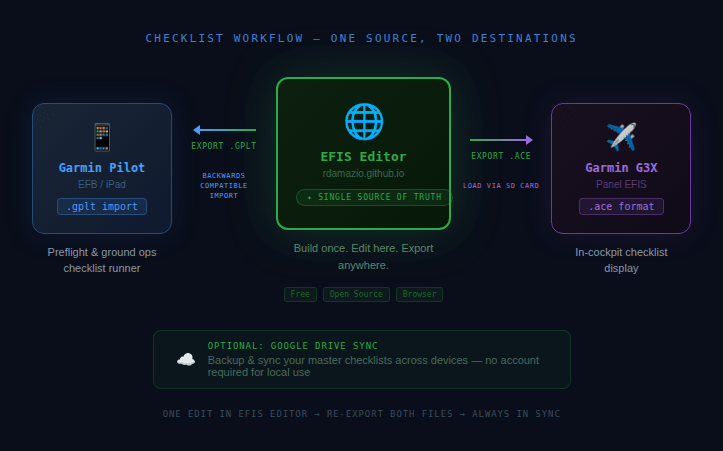
Step 1: Build your master checklist in EFIS Editor
Head to rdamazio.github.io/efis-editor and build your checklist from scratch in the web interface. This is your single source of truth going forward. Every future edit happens here — not in Garmin Pilot, not in a Windows VM, not anywhere else. Set up Google Drive sync or export a backup copy while you’re at it.
If you are using Foreflight you can export your list and import it to the EFIS editor. Then skip Step 3 (no need to import it back to Foreflight).
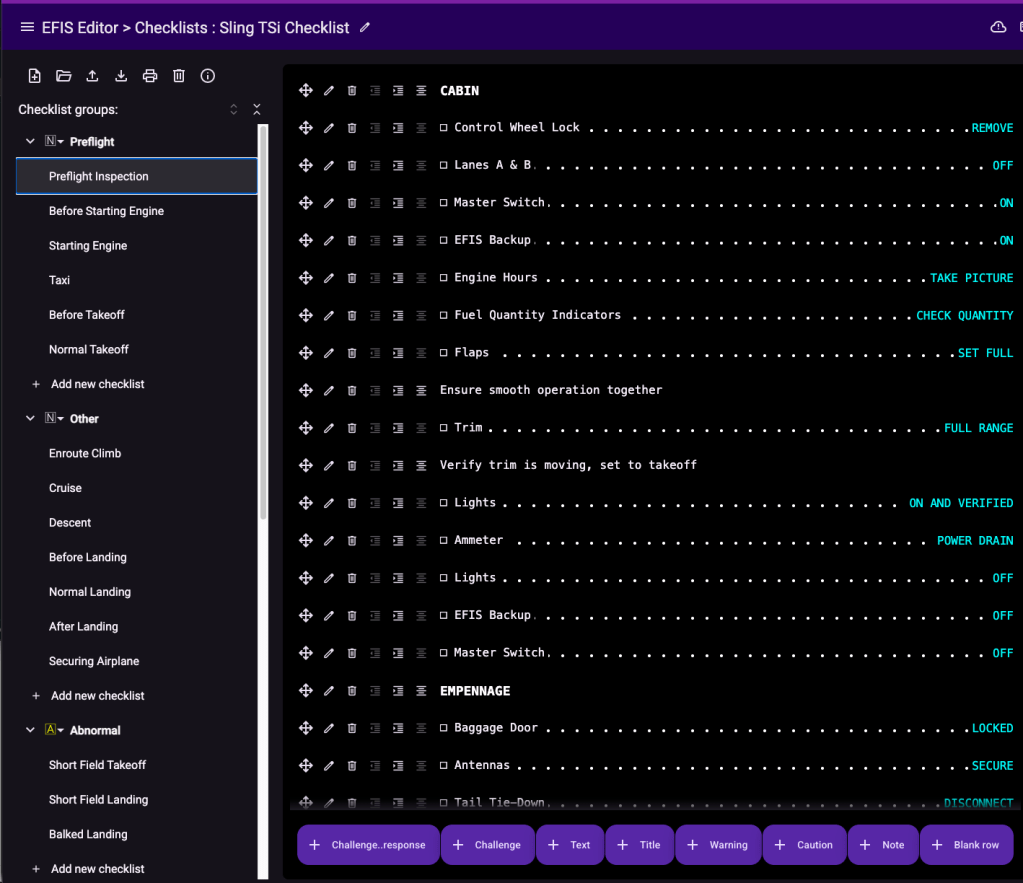
Step 2: Export to .ace for your G3X
When your checklist is ready, export it in .ace format. Load it onto an SD card and insert it into your G3X the same way you always would. Your checklist is now live on your primary flight display.
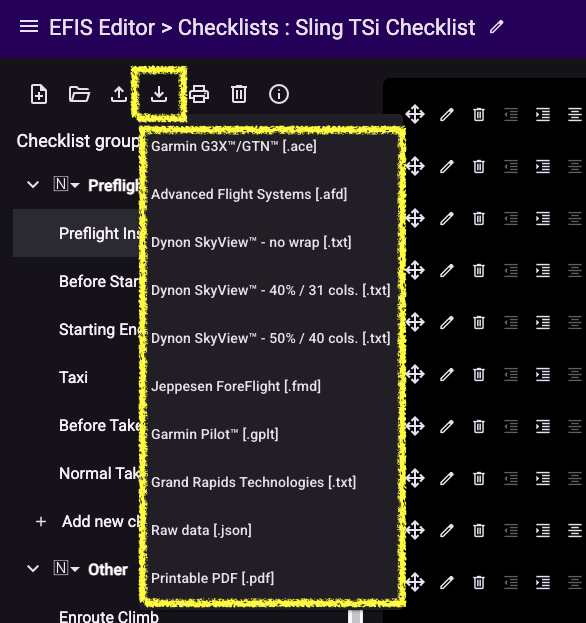
Step 3: Export to .gplt for Garmin Pilot
Export the same checklist in .gplt format. Now here’s the detail worth understanding: Garmin Pilot currently exports checklists in .glpts — an encrypted format that nothing else can read. However, Garmin Pilot still imports the older unencrypted .gplt format for backwards compatibility with previous versions of the app. EFIS Editor exports standard .gplt — not the encrypted variant — so the import into Garmin Pilot works cleanly. No workarounds, no hacks.
Step 4: Import into Garmin Pilot
In Garmin Pilot, import your .gplt file. Your checklist is now available on your EFB, perfectly in sync with what’s on your G3X.
Going forward: any time you update a procedure, you do it once in EFIS Editor, re-export both files, and you’re done. One source. Two destinations. Zero divergence.
The one caveat worth being upfront about: if you’ve already built checklists in Garmin Pilot, you’ll need to re-enter them in EFIS Editor to get started. It’s a one-time investment — and given that you’re building them in an open, portable format this time, it’s the last time you’ll ever have to do it.
The Closing Shot
Garmin makes extraordinary avionics. The G3X is a remarkable piece of technology. Garmin Pilot is one of the best EFB apps in the business. None of that is in dispute.
But extraordinary hardware deserves better than this. Pilots who have invested tens of thousands of dollars in a Garmin ecosystem deserve a coherent answer to a question as basic as “how do I keep my checklists consistent across my own cockpit?” The fact that the answer had to come from a single developer working on an open-source project in their spare time says everything about where checklist interoperability ranks on Garmin’s priority list. Garmin has dropped the ball on this one.
So here’s where we land: use EFIS Editor. Build your checklists there. Export to wherever you need them. Own your data. And maybe — just maybe — if enough Garmin customers start routing around this problem instead of suffering through it quietly, someone in Olathe, Kansas will eventually notice.




 Slingology - Building and Flying a Sling TSi
Leave a comment